How to Get the Most Out of Google Search Console: Tips & Tricks

How to Get the Most Out of Google Search Console: Tips & Tricks
In a world of super-expensive SEO tools, the free-to-use Google Search Console is the underrated jewel in the crown when it comes to analysing information straight from the horse’s mouth (Google) and saving money in the meantime if your marketing budgets are tight.
Despite several UX updates to the platform over the years, Google Search Console can still be pretty difficult to get your head around, especially if you’re new to the world of SEO.
To save you from logging in, suffering from information overload, and then logging out of Google Search Console, I’ve pulled together a few practical tips and lesser-known tricks.
Finding Quick-Win Keyword Opportunities
Google Search Console’s Search Results feature (Within the “Performance” tab) can be a goldmine for keyword opportunities.
The quickest and easiest way to get started is by starting with your most popular pages by clicks within the “pages” tab, opening the URL(s) and then filtering the “top queries” of that page by impressions.
Here you can find keywords that are getting high impressions, however the page in question may not be optimised for these keywords.
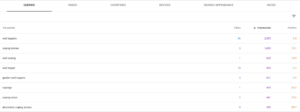
In this example, we can see several opportunities: ‘coping stones’ has 1,890 impressions at position 15.1 but only 3 clicks. Meanwhile, ‘garden wall toppers’ ranks at position 3.9 with 521 impressions but just 5 clicks – here the ranking is ok, but the meta title or description may need work to improve click-through rates.
There may be opportunities to add these keywords to important SEO elements such as the meta title, H1 or internal links pointing to the page.
Even adding these keywords in the body text can increase the ranking potential of these keywords to take advantage of the high impressions.
Tip: Spindrift is a fantastic tool to help you with this process as it connects with Google search console and will tell you how many times a particular keyword has been mentioned on the page, or if not at all.
Identifying Underperforming Pages & Keywords
A key task that I use Google Search Console for is identifying which pages are contributing to an overall decline in clicks.
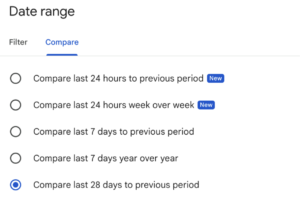
Using the date range filter, you can compare, for example, the last 28 days to the previous period.
Once you have found the pages that are seeing significant declines, you then want to identify the associated keywords of that page that are declining.
Pages showing decline will display negative percentages in red, these are your priority keywords to investigate.
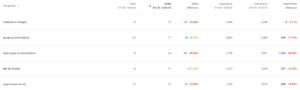
Tip: The Google Search Console Enhanced Analytics Chrome Extension is really handy for diagnosing drops as it adds percentage data, great for reporting purposes too!
There could be a range of factors here such as increased competition in the SERPs or Google algorithm updates.
However, there are aspects here that could be more in your control to “fix”, maybe the keywords in question have declined due to a meta title change or a page refresh hasn’t been successful,l that you may consider reversing.
Or maybe it’s due to Keyword Cannibalisation
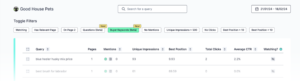
Tip: I also can’t recommend SEOgets enough when it comes to identifying underperforming pages & keywords via their intuitive dashboard, which removes the friction that you often find on the standard Google Search Console dashboard
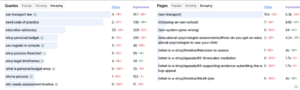
Reports within Google Search Console
Utilising The Crawl Stats Report
If you don’t know your way around Google Search Console so well, you could potentially miss the crawl stats report altogether! It’s hidden within the settings tab, and then you have to click “open report” in the crawl stats section.
The crawl stats report displays some really valuable information on how Google is interacting with your site
It shows you things like:
- How often Googlebot visits your site (crawl requests per day)
A sudden drop could suggest that the crawl budget has been limited due to issues with speed or server errors (source)
- How quickly your server responds (average response time)
Google’s SEO Liaison, John Muller, recommended that average response times should be around 100ms. Otherwise, Google may limit site crawling (source)
- Crawl requests by response code
Keep an eye on any Not found (404) & Server error (5XX) responses. This could indicate potential URLs that may need to be redirected (404s) or technical issues (5XX)
The “Crawl requests: HTML” section is also a key section to make sure that Google is crawling your important pages frequently, if not, it could indicate that disallow rules need to be added to your websites Robots.txt file to block Googlebot from crawling low value urls such as Internal search result pages or staging site URLs.
To dig deeper into this and have a more comprehensive view of what Google is crawling, consider asking your devs the logs so you can perform server log analysis.
The Indexing Report
Once you know Google can reach your pages (via the crawl stats report), the next step is checking whether it’s actually indexing them. That’s where the Indexing report comes in.
The indexing report is one of the most important features within Google Search Console because ultimately, if your important pages aren’t getting indexed for whatever reason, they won’t appear in the Google search results.
It shows you things like:
- How many URLs are currently indexed and showing in search (Indexed pages)
Ensure that only pages of sufficient quality are indexed, as Google will consider all your indexed pages when determining an overall site quality score.
- Pages that have been crawled and currently not indexed
Pages within this section are usually thin or low value content. If there are pages within there that you want to be indexed, they are worth reviewing to see if there is scope to improve these pages to try nudge Google to index them.
- Not Found (404) Pages
If you have changed a bunch of URLs recently, because of a migration for example, the 404 report is great to check just to make sure you haven’t missed any redirects that need implementing
Alongside these particular three aspects to check over, deep dive into everything that is being reported in the indexing report to spot anything that doesn’t look right.
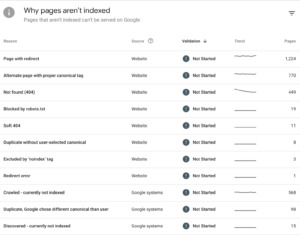
Regularly monitoring these indexing reports helps you catch issues before they impact your search visibility.
If you or your company need any help or guidance when it comes to utilising Google Search Console to its full potential, get in touch with the Minty SEO Team
